How to fix the font rendering on macOS 10.14 Mojave
How to fix the font rendering on macOS 10.14 Mojave
Table of Contents

...and make it look like High Sierra's.

With macOS Mojave, Apple disabled a feature called "Subpixel antialiasing". Apparently, it is some complex, legacy code, and they decided to remove it.

On Hacker News, ridiculous_fish, an ex-macOS software engineer, says subpixel antialiasing is painful to implement:

ex-MacOS SWE here. Subpixel antialiasing is obnoxious to implement. It requires threading physical pixel geometry up through multiple graphics layers, geometry which is screen-dependent (think multi-monitor). It multiplies your glyph caches: glyph * subpixel offset. It requires knowing your foreground and background colors at render time, which is an unnatural requirement when you want to do GPU-accelerated compositing. There's tons of ways to fall off of the subpixel antialiased quality path, and there's weird graphical artifacts when switching from static to animated text, or the other way. What a pain!

Nevertheless there's no denying that subpixel-AA text looks better on 1x displays. Everyone notices when it's not working, and macOS will look worse without it (on 1x displays).

Indeed, with macOS Mojave, a lot of users noticed their font looked awful. I noticed it too, on my 1080p monitor ("1x display"): the fonts looked blurry.
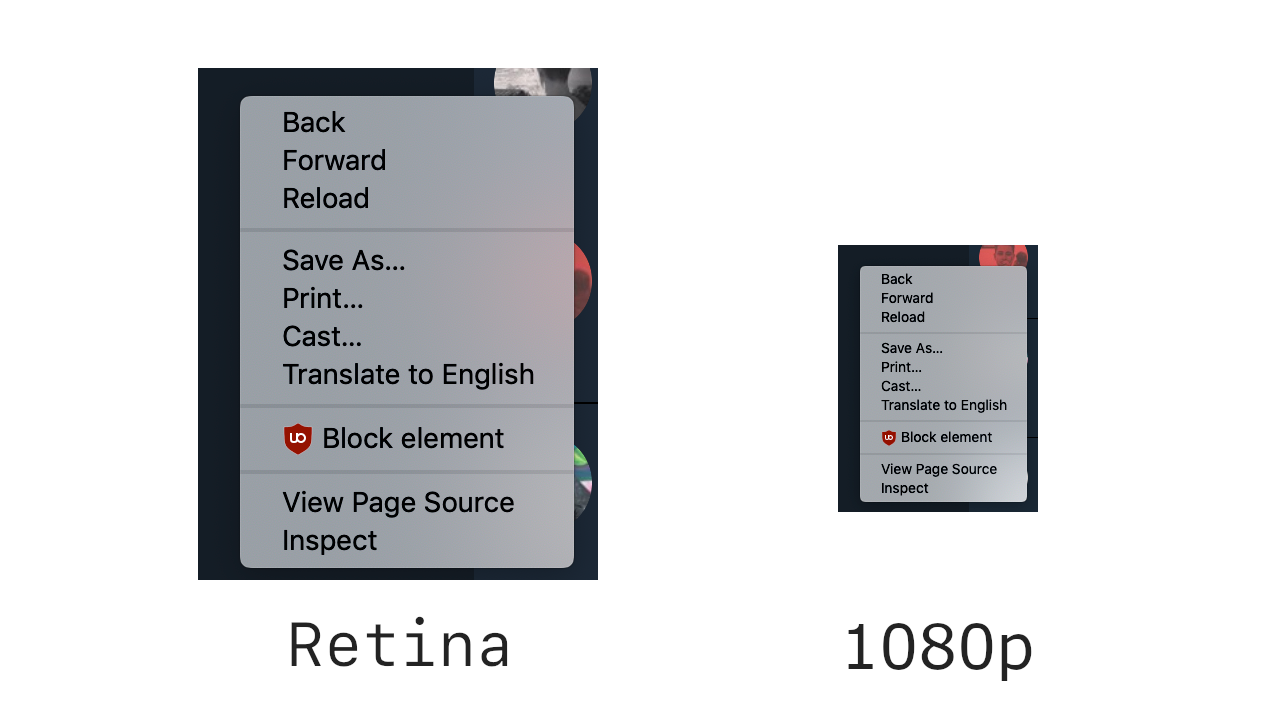
Of course, the Retina version is sharper. But the left one is still 1080p! Notice how it's blurry...

On my retina Macbook Pro, the font looked thinner and, I don't know, just bad, especially on Electron/Webkit based apps. What was really bothering me was how bad the fonts looked in Visual Studio Code, my favorite editor.

In fact, an issue on the VS Code GitHub repo was opened since the Mojave beta, and people were complaining, without any real solution.

On some websites, you will find command lines that modify the font smoothness. However this isn't a real fix and barely improve the font rendering.

The real solution#

While I was desperate and preparing to rollback to High Sierra, GitHub user alexanderyakusik posted the solution in the issue I mentioned above:

I just found the possible solution. Try executing this command in the terminal: defaults write -g CGFontRenderingFontSmoothingDisabled -bool NO

As said above:

  • Open the terminal
  • Paste defaults write -g CGFontRenderingFontSmoothingDisabled -bool NO and press enter
  • Reboot
  • Enjoy!

Note: Some users reported that logging out was sufficient to apply the change.

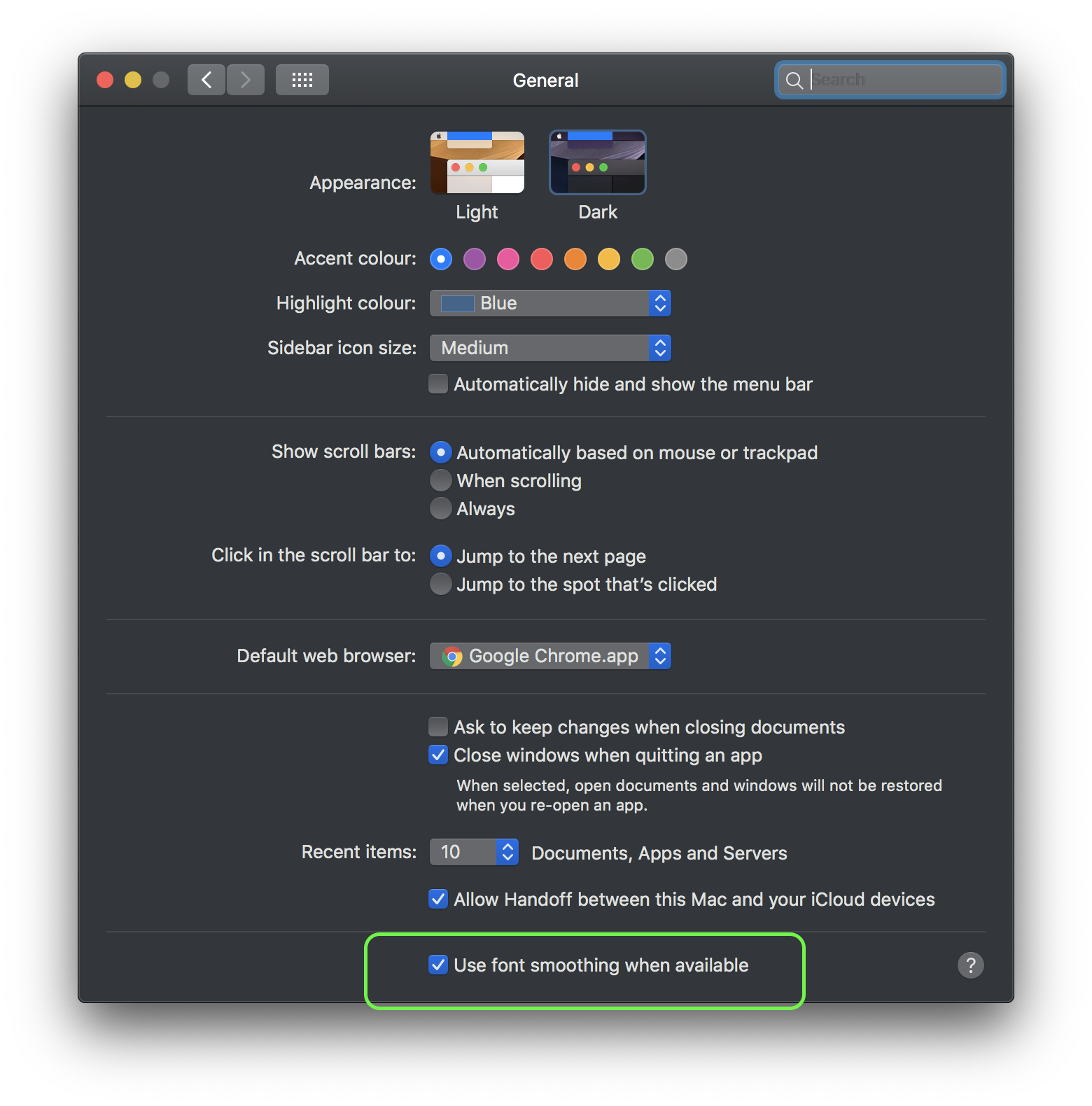
I had to reenable font smoothing in the settings though. It should probably be on for you, but if it's not, enable it here:
Now, it feels like High Sierra. I'm so happy! 🎉

What does this command do? I don't know for sure. But I can deduce it is something that disable something linked to font smoothing, and it's set to YES by default.

That means that Apple did not remove the code for subpixel antialiasing, but disabled it by default. I wonder if they will rollback this change in future releases, since I did not see a single person on the internet that was happy about this change...

I hope they won't remove the option at least. Well, we'll see!

Stanislas
Author
Stanislas
I like building things with code and computers

Comments

21Atom feed
Markdown supported
  1. Goodwin

    It works! The text became subpixel-antialiased.

  2. Kev

    It worked for me thanks for the info man.

  3. Anonymous

    Why the hell did they do this. Thank you, it looks so much better again!

  4. Anonymous

    Thanks for the tip! I knew there was something off about the font in Mojave and your fix definitely helped!

  5. Anonymous

    I have a silly question. I haven't used Terminal in the past. When I bring up the Terminal box, I added the above command to what is already in the box. However I didn't notice any changes after logging out and then back in. Am I supposed to delete what's in the box and paste only this command? Sorry for such a basic question. Looking for a solution to this issue. Thank you!

    1. Anonymous

      I don't think I did, no. I added the command to what was already in the box and then logged out and back in like some others had mentioned. So, you say paste this command next to what's in the box already, press enter, and then restart?

    2. Anonymous

      Thank you so much! That worked. I use my MBP for school for hours at a time and ever since updating to Mojave my eyes have been strained. I can already feel the strain is gone. Thank you for your time, I seriously appreciate it!

  6. dgold

    Thanks for this. It worked, on most things, but some things are definitely sub-optimal on a Retina Screen even after applying this fix. Tab-names on iTerm2 for instance, are unreadable in Mojave, as are the little pop-overs in PopClip. Font rendering was the one thing apple really excelled at, and now they don't.

    1. StanislasAuthor

      I noticed the same thing about iTerm2 tabs.

      Font rendering is one of the main reason I love macOS.

  7. dom

    This makes a massive difference - dunno about anybody else, but the crazy thing was that dark mode makes the difference even more apparent - these seem like two really crazy things to release at the same time

  8. Anonymous

    Thanks! it works

  9. Nic

    Unfortunately this didn't work for me, but then I didn't have a problem when I upgraded to Mojave. It was when I did a subsequent update to the OS that my fonts suddenly became blurry (I'm on a 2014 macbook pro with retina display but it feels as if I've reverted to a non-retina display! What have they done!!

  10. Anonymous

    It works! Thanks for the tip!

  11. Manuel

    It works; as simple as that. Thank you very much for this outstanding contribution!

  12. Alan G.

    PLEASE HELP!! I wrote the command on the terminal and now the General Preferences pane in System Preferences does not load!!... I don'y know how to resolve this. It seem to have corrupted the generalpreferences.plist archive. Also I've tried to restore the corrupt archive with Time Machine and the macbook does not recognize the external disk neither!! Please help me to fix it....

  13. Daniel Tu

    It works!!! This problem have confused me for a long time, Thanks for your solution. > <