Moving Mastodon's media files to Wasabi Object Storage

Table of Contents
As you may know I have been running a Mastodon instance for over a year now and in such a long period of time the instance accumulated a lot of data.
The context#
The DB contains about 20 million toots for about 20 GB. But the most painful part to handle is the media, all the static content related to user accounts:
- avatars
- headers
- attachments (local and remote)
- preview images for links
And to a lesser extent, custom emojis and user-requested backups.
You can't really delete headers and avatars since you need them. About attachments, there is a rails task that has been introduced about a year ago to clean the remote cache. Even so, I have about 300k files for 45 GB...
And the worst, even though you're not really expecting it, is the preview cards for links. Since there's one for nearly each link a user from your instance posts, plus the ones from foreign instances. And you can't clean them. So I've ended up with 25 GB of preview cards for a total of 2.5 million files...
This is pretty hard to handle: it uses quite a lot of inodes and each night the server's I/O is murdered because my backup tool has to go over millions of files, delete the old ones and sync the new ones.
A quick cleanup#
First what I decided to do was to clean the preview cards. It's insane to store such an amount of files for such a useless feature (let me remind you that you won't see the card until you click on a toot).
Here's what I did, in my mastodon folder:
find public/system/preview_cards/ -mtime 7 -type f -deleteThat deleted all the preview cards older than a week. Down to 30k files and 1.3 GB, pretty neat!
The solution: S3 storage#
A lot of static files is a perfect use case for an object storage service: there is no need to have the files on the actual file system of the Mastodon server!
Mastodon supports S3-compatible storage services, so not only AWS S3: Wasabi, Digital Ocean's Spaces, Minio, etc.
Using Minio on another server is actually a solution and I've tested it, so take a look if you're interested in self-hosting everything yourself.
Wasabi, our savior#
Wasabi is cheap.
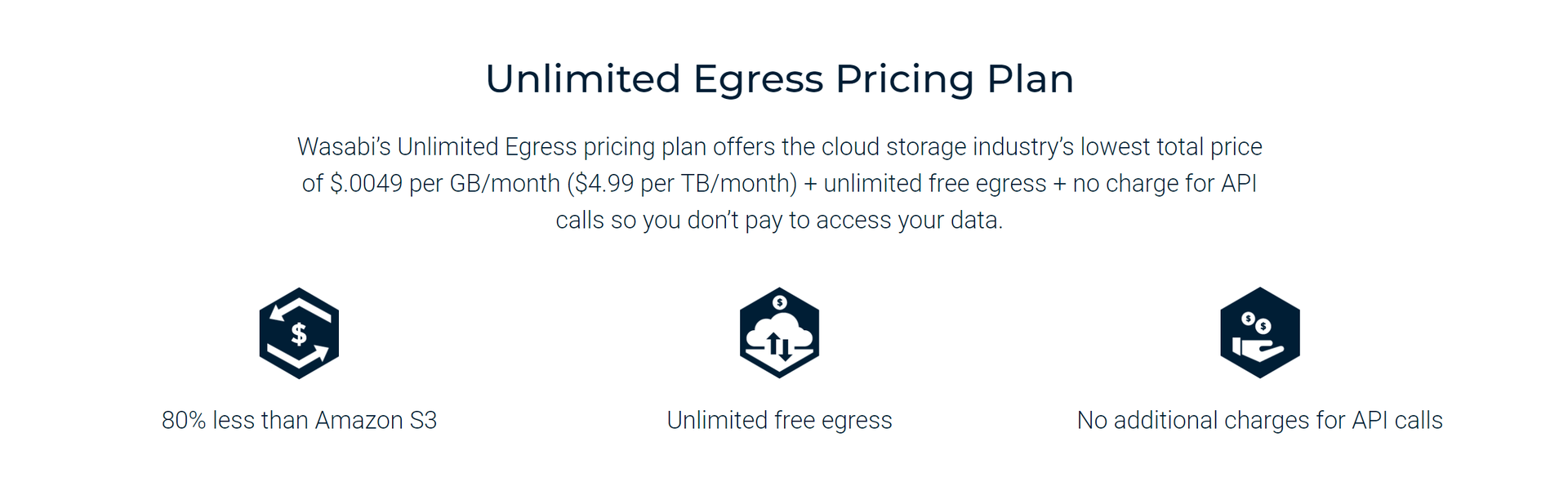
The minimum you can pay is $5/month, e.g. as much as if you were using 1 TB per month, which won't be the case for 99% of Mastodon instances (including mine, and it's in the top 15).
After hearing about it from fediverse friends, I decided to try it out for myself. Actually I did try it a few months ago but this whole bucket thing is so not user friendly that I ended up giving up and my account was deleted.
I signed up again a few weeks ago and tried it out more seriously. Here's what I did to use Wasabi to store mstdn.io's media files!
Wasabi setup#
First, we will setup what we need on Wasabi.
Create an account#
You can sign up for free on Wasabi and get a 1 TB free trial for 30 days.
Then you're going to need 2 things:
- A bucket
- A user
Creating a public bucket#
You should be able to do that by yourself. Be aware that you have to choose a unique name. For instance my bucket is called mstdn-media , so you won't be able to use that name.
Then add this policy to make sure anyone can get an object from the bucket (i.e. making it publicly readable):
{
  "Version": "2012-10-17",
  "Statement": [
    {
      "Sid": "AddPerm",
      "Effect": "Allow",
      "Principal": {
        "AWS": "*"
      },
      "Action": "s3:GetObject",
      "Resource": "arn:aws:s3:::mstdn-media/*"
    }
  ]
}
Creating a user with a correct policy#
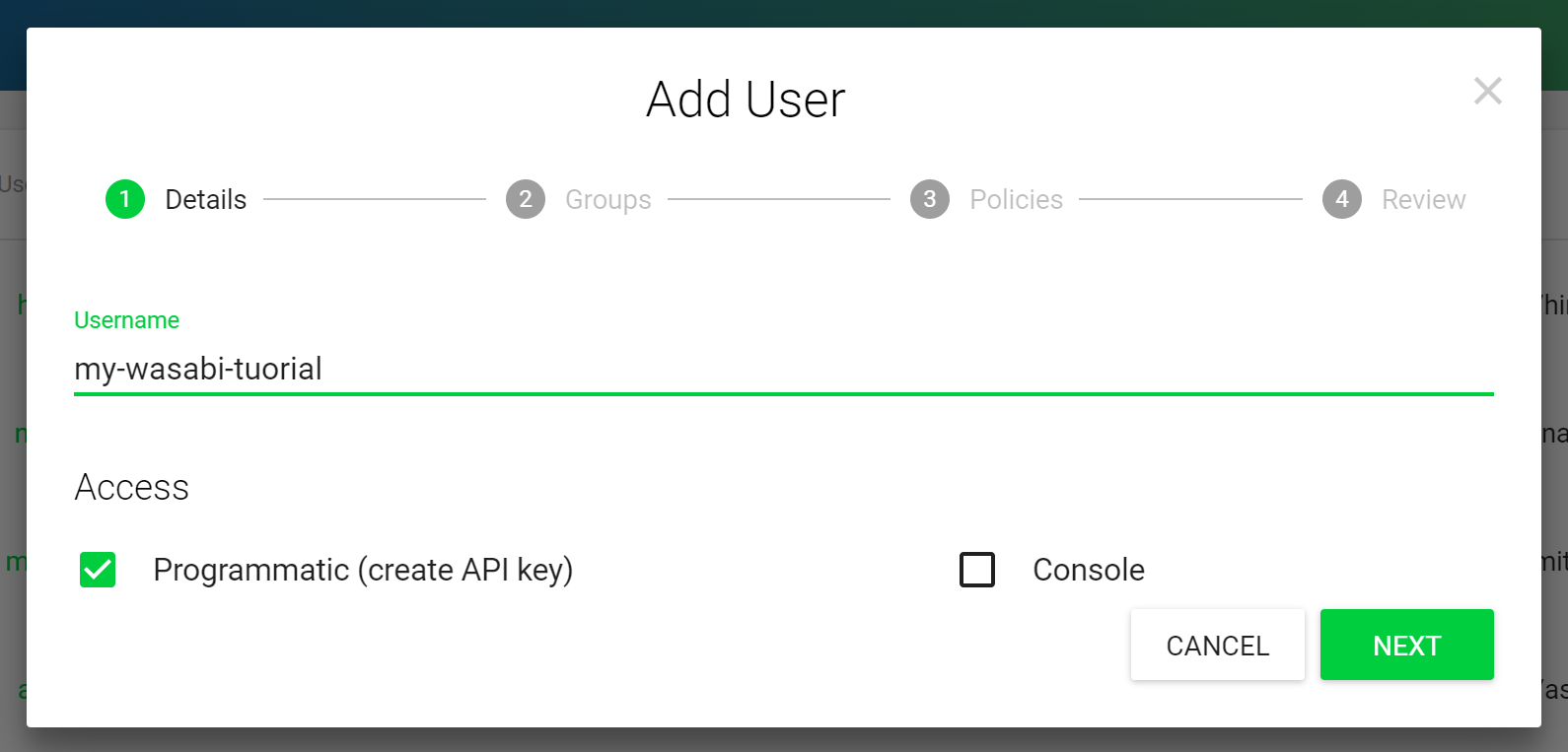
Then, create a user, name it however you want, and get API keys. I recommend to store them in your password manager.
Then we'll need to create and attach a policy for this user in order to give it full access to the bucket while restraining it to this bucket only.
Here's the one I use, mstdn-media being the name of my bucket.
{
  "Version": "2012-10-17",
  "Statement": [
    {
      "Effect": "Allow",
      "Action": "s3:ListBucket",
      "Resource": "arn:aws:s3:::mstdn-media"
    },
    {
      "Effect": "Allow",
      "Action": ["s3:PutObject", "s3:GetObject", "s3:DeleteObject"],
      "Resource": "arn:aws:s3:::mstdn-media/*"
    }
  ]
}
Then go to the "Permissions" tab for your user and attach the policy.
We're good to go!
Syncing files from the server to the bucket using aws-cli#
Now we can upload our media files to Wasabi. I advise to do some cleanup before (like the find command above) and the remove_remote task.
To uploads files to S3, you can use s3cmd, mc (from minio) or aws-cli. s3cmd is slow and uses 10 GB of RAM on my server (lol), mc is quite slow too.
I recommend aws-cli, which is the fastest and lightest.
Installing aws-cli#
At first I installed aws-cli from the Debian repos using APT (I'm running Stretch), but it turns out I encountered a bug because it uses Python 3 while aws-cli is a Python 2 tool.
Thus you have to install it using pip:
apt install python-pip
pip install awscliroot@hinata ~# aws --version
aws-cli/1.15.26 Python/2.7.13 Linux/4.9.0-6-amd64 botocore/1.10.26Configuring aws-cli#
Enter your Access Key and Secret Key you got for your user earlier.
root@hinata ~# aws configure
AWS Access Key ID [None]: XXXXXXXXXXXX
AWS Secret Access Key [None]: XXXXXXXXXXXXXXXXXX
Default region name [None]:
Default output format [None]:
You can ignore the 2 other fields.
aws-cli is intended to be used with AWS by default, so we'll have to add --endpoint-url=https://s3.wasabisys.com to each command.
You can also configure a wasabi profile, but I'm too lazy.
Syncing your media folder and the bucket#
Go in your Mastodon folder and run:
aws s3 sync public/system/ s3://my-bucket/ --endpoint-url=https://s3.wasabisys.comThis is where the magic happens. Be aware than it can take a few minutes up to days depending on the number of files you have.
Setting up a Nginx reverse proxy with cache for the bucket#
We could set up Mastodon to server the media files directly from https://s3.wasabisys.com/your-bucket/, but it's kind of ugly.
Instead we're going to use a subdomain that will reverse proxy to wasabi and add a cache layer. That would be a big help in costs in most S3 services, but Wasabi doesn't charge egress. Still, it's good for performance and privacy, and it's cleaner.
Here's the vhost I use:
proxy_cache_path /tmp/nginx_mstdn_media levels=1:2 keys_zone=mastodon_media:100m max_size=1g inactive=24h;

server {
    listen 80;
    listen [::]:80;
    server_name media.mstdn.io;
    return 301 https://media.mstdn.io$request_uri;

    access_log /dev/null;
    error_log /dev/null;
}

server {
    listen 443 ssl http2;
    listen [::]:443 ssl http2;
    server_name media.mstdn.io;

    access_log /var/log/nginx/mstdn-media-access.log;
    error_log /var/log/nginx/mstdn-media-error.log;

    # Add your certificate and HTTPS stuff here

    location /mstdn-media/ {
        proxy_cache mastodon_media;
        proxy_cache_revalidate on;
        proxy_buffering on;
        proxy_cache_use_stale error timeout updating http_500 http_502 http_503 http_504;
        proxy_cache_background_update on;
        proxy_cache_lock on;
        proxy_cache_valid 1d;
        proxy_cache_valid 404 1h;
        proxy_ignore_headers Cache-Control;
        add_header X-Cached $upstream_cache_status;
        proxy_pass https://s3.wasabisys.com/mstdn-media/;
    }
}
Basically it caches request for about 24h and 1 GB max. I won't explain every option I used here, but feel free to read the Nginx documentation about proxy_cache.
Configuring Mastodon to use the bucket#
We're ready to make Mastodon use our bucket. To do so, add the following to your .env.production:
S3_ENABLED=true
S3_BUCKET=mstdn-media
AWS_ACCESS_KEY_ID=XXXXXXXX
AWS_SECRET_ACCESS_KEY=XXXXXXXXXXX
S3_PROTOCOL=https
S3_HOSTNAME=media.mstdn.io
S3_ENDPOINT=https://s3.wasabisys.com/
You'll have to modify S3_BUCKET, AWS_ACCESS_KEY_ID, AWS_SECRET_ACCESS_KEY and S3_HOSTNAME.
Now, do another aws s3 sync, restart mastodon and do a sync again. This way you will be sure to have all you medias on S3 with minimum impact on the instance!
Now all the media on your instance should be loaded from your subdomain, and thus from the bucket.
Checking cache use#
You can check if the cache is working with curl (or your browser's dev tools):
stanislas@xps:~$ curl -I https://media.mstdn.io/mstdn-media/media_attachments/files/001/871/825/original/f35282636242f8c7.jpg
HTTP/2 200
server: nginx
date = Mon, 28 May 2018 14:40:10 GMT
content-type: image/jpeg
content-length: 45512
vary: Accept-Encoding
etag: "ed362dc5e25aee8d9364a41238264dc8"
last-modified: Thu, 24 May 2018 04:52:01 GMT
x-amz-id-2: 4PpMGhWLCEEw/wxNZO6rsp5BS3w0MXWVFiyrrFaZL8YvnQxwssQO4C3bm6u/a0ueHheDWyRE3hnE
x-amz-request-id: 1AF32773A689783C
x-cached: HIT
accept-ranges: bytes
On the first query, you'll get x-cached: MISS, but you should get x-cached: HIT on the second.
Cleanup#
You can now remove your public/system folder on your server! :D
Wasabi's price model make it so that every object uploaded is billed for 90 days at least.
Thus you can keep 90 days of remote files, since it will cost the same as 1 or 10 or 50 days.
RAILS_ENV=production NUM_DAYS=90 rake mastodon:media:remove_remoteFor more information, see their pricing FAQ.
Special thanks#
Thanks to cybre.space for their S3 Mastodon Guide. It's also a good read, but I wanted to make a bit more complete tutorial and specific to Wasabi.